Compatibility and verification
Compatibility and verification
Documented procedure
Git syntax is documented and confirmed by CLI help. A complete Git installation has not been newly verified for this guide.
- Recorded
- 2026-09-30
Add a source inside Grok Build
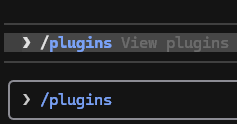
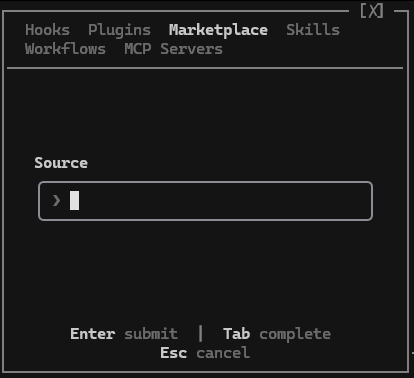
Start Grok Build and enter /plugins. In the Marketplace tab, open the add-marketplace control and enter the source. Press Enter to submit. This is an alternative to the marketplace-add terminal command, so you do not need to register the same source twice.
For this target, enter https://github.com/Fayegram-AI/plugin-market.git in Source.
Grok may show this source as plugin-market or under a name saved in your Grok configuration. Match the repository URL or local path when choosing it; the source label can differ from the marketplace’s display name.
Requirements
- Install Grok Build and sign in before running skills. Use the official documentation if the application is not yet available.
- Check the chosen plugin's requirements; some skills need additional tools or runtimes.
- Use PowerShell on Windows or Bash/zsh on macOS/Linux. Interactive slash commands are entered inside the application.
- Git and access to the configured repository are required. Registration can run from any directory; it fetches the source for you.
Add Faye Plugin Market
Run this once for the selected source. If the same source is already registered, reuse it. Adding a marketplace makes its plugins available to choose; it does not install them all.
grok plugin marketplace add https://github.com/Fayegram-AI/plugin-market.gitgrok plugin marketplace add https://github.com/Fayegram-AI/plugin-market.gitWhat you should seeThe source is registered. Its native marketplace identity is faye-plugin-market.
Open Grok's plugin catalog
Start Grok in your terminal, enter /plugins, and select the Marketplace tab. Choose the source you just registered. The slash command below belongs inside Grok, not your operating-system terminal.
grokgrok/pluginsWhat you should seeThe Faye packages in this guide appear in the selected catalog.
Available plugins
Once the marketplace is added, you can stop here or install any of these plugins. Adding the marketplace does not install every plugin.
Faye Coding Assistantv0.1.0-beta.7Focused, scope-preserving coding skills.
Choose Faye Coding Assistant in the selected Marketplace tab and install it. Review Grok's trust prompt before accepting.
What you should seeFaye Coding Assistant appears in the installed plugin list. Compare its version with 0.1.0-beta.7 shown by this marketplace.
Faye Image Utilityv0.1.0-beta.6Image auditing, editing, conversion, and rating estimates.
Choose Faye Image Utility in the selected Marketplace tab and install it. Review Grok's trust prompt before accepting.
What you should seeFaye Image Utility appears in the installed plugin list. Compare its version with 0.1.0-beta.6 shown by this marketplace.
Faye UI System Engineerv0.1.0-beta.4Web UI design, implementation, review, and inspection.
Choose Faye UI System Engineer in the selected Marketplace tab and install it. Review Grok's trust prompt before accepting.
What you should seeFaye UI System Engineer appears in the installed plugin list. Compare its version with 0.1.0-beta.4 shown by this marketplace.
Confirm installation and start a new session
Check the plugins you selected are installed and enabled where the application exposes that state. The list command below is a quick confirmation, not a test of every skill.
Start a new Grok Build session, open its skill picker or Plugins interface, and choose a task from the installed plugin's skill guides. Read that skill's inputs and requirements before sending your request.
Use the product's native skill picker or slash-command guidance. Read the selected skill's guide rather than translating another application's example yourself.
grok plugin listgrok plugin listWhat you should seeYour selected plugins are installed and their applicable skills can be found or explicitly invoked in a fresh session.
Other ways to install
Direct CLI installation: Faye Coding Assistant
Optional alternative to installing through the Marketplace tab. This installs one plugin directly and does not require marketplace registration. Do not use both routes for the same installation.
Review the interactive trust prompt. Automatic trust is not enabled by this example.
grok plugin install 'https://github.com/Fayegram-AI/plugin-market.git#plugins/faye-coding-assistant'grok plugin install 'https://github.com/Fayegram-AI/plugin-market.git#plugins/faye-coding-assistant'What you should seeFaye Coding Assistant appears in the installed list.
Direct CLI installation: Faye Image Utility
Optional alternative to installing through the Marketplace tab. This installs one plugin directly and does not require marketplace registration. Do not use both routes for the same installation.
Review the interactive trust prompt. Automatic trust is not enabled by this example.
grok plugin install 'https://github.com/Fayegram-AI/plugin-market.git#plugins/faye-image-utility'grok plugin install 'https://github.com/Fayegram-AI/plugin-market.git#plugins/faye-image-utility'What you should seeFaye Image Utility appears in the installed list.
Direct CLI installation: Faye UI System Engineer
Optional alternative to installing through the Marketplace tab. This installs one plugin directly and does not require marketplace registration. Do not use both routes for the same installation.
Review the interactive trust prompt. Automatic trust is not enabled by this example.
grok plugin install 'https://github.com/Fayegram-AI/plugin-market.git#plugins/faye-ui-system-engineer'grok plugin install 'https://github.com/Fayegram-AI/plugin-market.git#plugins/faye-ui-system-engineer'What you should seeFaye UI System Engineer appears in the installed list.
Check an existing installation
Use this before adding a second source or when setup reports that the plugin already exists. Compare the names and source locations; reuse a matching installation.
grok plugin listgrok plugin listgrok plugin marketplace listgrok plugin marketplace listWhat you should seeThe intended source and installed package are identified without removing other registrations.
Manage later
Update or toggle Faye Coding Assistant
Choose only the operation you intend to perform. Check the installed source and version before updating. Disabling keeps the plugin installed; enabling makes its capabilities available again. Start a fresh session after changing its state.
grok plugin update faye-coding-assistantgrok plugin update faye-coding-assistantgrok plugin disable faye-coding-assistantgrok plugin disable faye-coding-assistantgrok plugin enable faye-coding-assistantgrok plugin enable faye-coding-assistantWhat you should seeThe installed plugin list shows the intended version and enabled state.
Update or toggle Faye Image Utility
Choose only the operation you intend to perform. Check the installed source and version before updating. Disabling keeps the plugin installed; enabling makes its capabilities available again. Start a fresh session after changing its state.
grok plugin update faye-image-utilitygrok plugin update faye-image-utilitygrok plugin disable faye-image-utilitygrok plugin disable faye-image-utilitygrok plugin enable faye-image-utilitygrok plugin enable faye-image-utilityWhat you should seeThe installed plugin list shows the intended version and enabled state.
Update or toggle Faye UI System Engineer
Choose only the operation you intend to perform. Check the installed source and version before updating. Disabling keeps the plugin installed; enabling makes its capabilities available again. Start a fresh session after changing its state.
grok plugin update faye-ui-system-engineergrok plugin update faye-ui-system-engineergrok plugin disable faye-ui-system-engineergrok plugin disable faye-ui-system-engineergrok plugin enable faye-ui-system-engineergrok plugin enable faye-ui-system-engineerWhat you should seeThe installed plugin list shows the intended version and enabled state.
Uninstall Faye Coding Assistant
Only use this when you intend to remove this plugin. It removes the selected installation and its capabilities; it is not a troubleshooting prerequisite. Leave other plugins and marketplace sources intact.
grok plugin uninstall faye-coding-assistantgrok plugin uninstall faye-coding-assistantWhat you should seeFaye Coding Assistant is no longer listed as installed.
Uninstall Faye Image Utility
Only use this when you intend to remove this plugin. It removes the selected installation and its capabilities; it is not a troubleshooting prerequisite. Leave other plugins and marketplace sources intact.
grok plugin uninstall faye-image-utilitygrok plugin uninstall faye-image-utilityWhat you should seeFaye Image Utility is no longer listed as installed.
Uninstall Faye UI System Engineer
Only use this when you intend to remove this plugin. It removes the selected installation and its capabilities; it is not a troubleshooting prerequisite. Leave other plugins and marketplace sources intact.
grok plugin uninstall faye-ui-system-engineergrok plugin uninstall faye-ui-system-engineerWhat you should seeFaye UI System Engineer is no longer listed as installed.